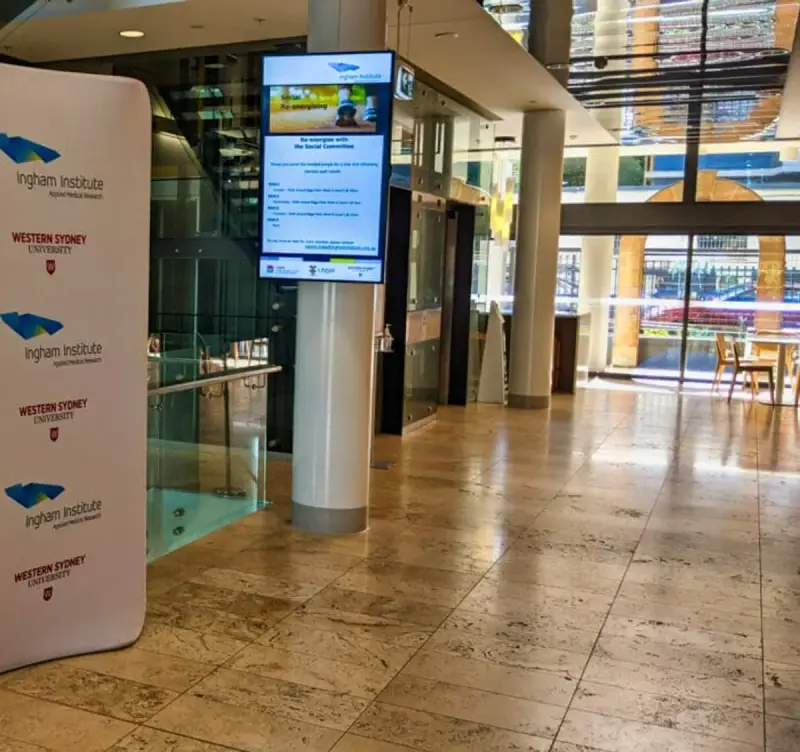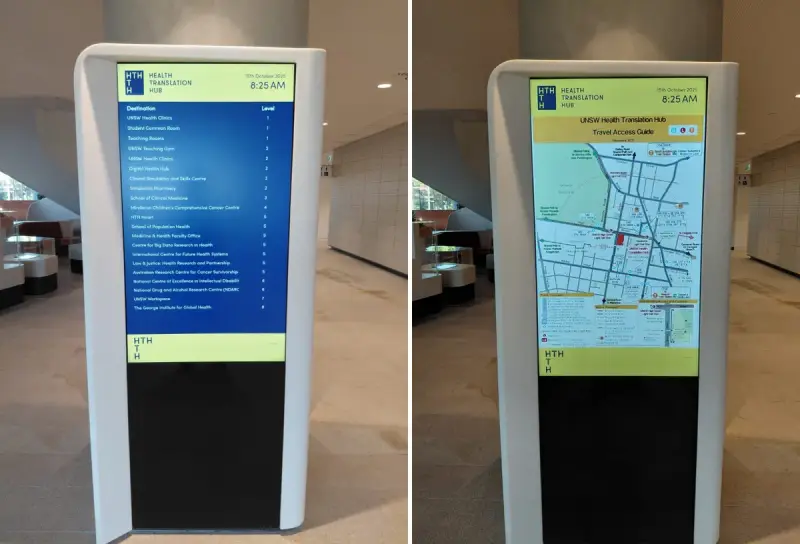
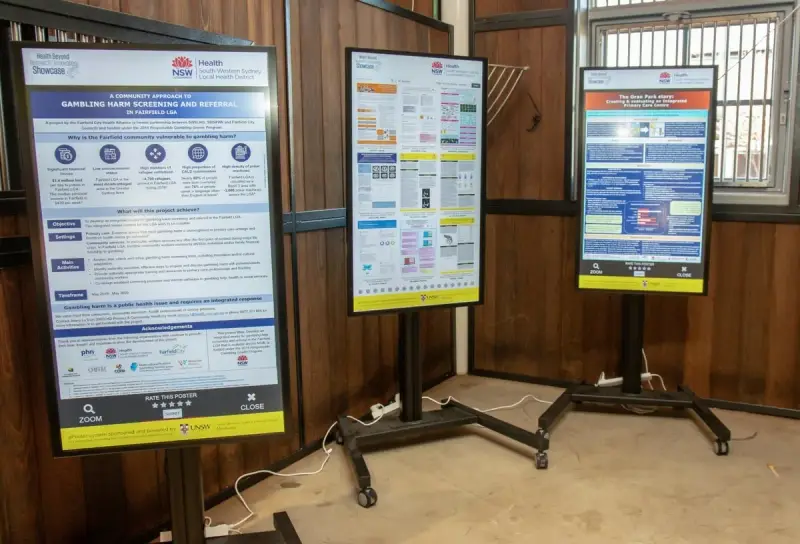
A screen can be easy to install and surprisingly difficult to make useful. The difference usually lies in the decisions made before installation: who should see the information, what they should understand, and who will keep it current. Digital signage works best when it is treated as a communication service with a clear purpose, rather than a television waiting for content.
For Australian workplaces, the starting point may be a reception area, a shared office floor, a university facility or a network of sites. Each setting has different viewing distances, operating hours and responsibilities. This guide explains how to turn those differences into a workable plan, from selecting a location to reviewing the first month of use.
1. Define the job each screen needs to do
Write one sentence describing the purpose of every proposed screen. A reception display might welcome visitors and explain where to check in. A staff display might highlight operational updates and the next action employees need to take. A screen near meeting rooms might show room information. Those purposes call for different content, placement and ownership.
A useful brief names the audience, the decision or action, and the information needed at that moment. “Improve communication” is too broad to guide a design. “Help first-time visitors find reception before they enter the lift lobby” provides a much clearer starting point. It also creates something that can be checked in a pilot.
Separate information that is useful everywhere from information that belongs to a particular site. A company-wide announcement may fit the whole network, while local opening hours should only appear where they apply. Ask whether each message belongs on a public screen at all. Staff-only information may need a different channel.
Record a business owner for each purpose. If two departments want the same screen to do different jobs, resolve the priority before choosing a playlist. Otherwise, the display can become a collection of competing messages that nobody has time to read.
2. Survey the location before choosing hardware
Visit the intended location during normal operating conditions. Observe where people arrive, where they pause, and which direction they face. A screen that looks prominent in an empty building may be hidden behind a queue, a door or a temporary promotional stand when the workplace is busy.
Check glare at different times of day, the available wall space, nearby lighting and the distance from typical viewers. Determine whether the display will run during business hours or for longer periods. Confirm that the proposed equipment is suitable for those operating conditions with the supplier; a familiar screen size alone does not establish suitability.
Power, network access, mounting and servicing need attention together. Make sure cables can be routed safely and that maintenance staff can reach the equipment without disrupting normal access. Any building works or mounting requirements should be reviewed by the appropriate building and installation professionals.
Capture photographs and measurements in a short site survey. Add a note about who can approve changes to the space. This record helps suppliers quote against the same conditions and prevents a hardware decision from being made on a floor plan that misses an important practical constraint.
3. Match the software to the publishing workflow
Begin software evaluation with the people who will use it. Can a local administrator update reception information without editing a complex layout? Can a central communications team maintain shared material while site staff manage local details? Those workflow questions are more useful than comparing long feature lists without a use case.
Ask suppliers to demonstrate a real publishing task from your brief. For example, update a local notice, schedule its start and end, preview the result, and confirm what appears on the intended screen. Check how approval, user permissions and content history work where those capabilities are required. Do not assume that every platform includes the same controls.
Also clarify which components depend on an internet connection. Some systems may support local playback of downloaded material, but the behaviour varies by player and configuration. Ask what viewers will see during an interruption and how an administrator can recognise that a screen is showing older content.
Workplace Solutions’ digital signage offering links to Advertise Me TV. Use the product information as a starting point for a requirements conversation, then confirm the specific hardware, software and support arrangements for your project.
4. Design content for glances, not documents
Most workplace screens compete with movement, conversation and other tasks. A dense document that is readable on a laptop will rarely work well on a wall display. Give each slide one primary message, use a descriptive heading, and make the next action easy to identify. Remove details that belong on a linked page or in a staff communication channel.
Use strong contrast and a hierarchy that remains clear from the actual viewing position. The W3C guidance on text contrast provides useful principles for digital interfaces. A physical screen still needs testing in its real environment, because glare, distance and display settings affect what people can read.
Do not rely on colour alone to express status. A coloured label should also say what it means. If a slide contains a QR code, provide a short, readable alternative or a clear description of where to find the information. Some visitors will not have a suitable device or may prefer not to scan.
Test the content with people who did not create it. Ask them what they noticed and what they would do next. Their answers are more informative than whether the design team likes the template.
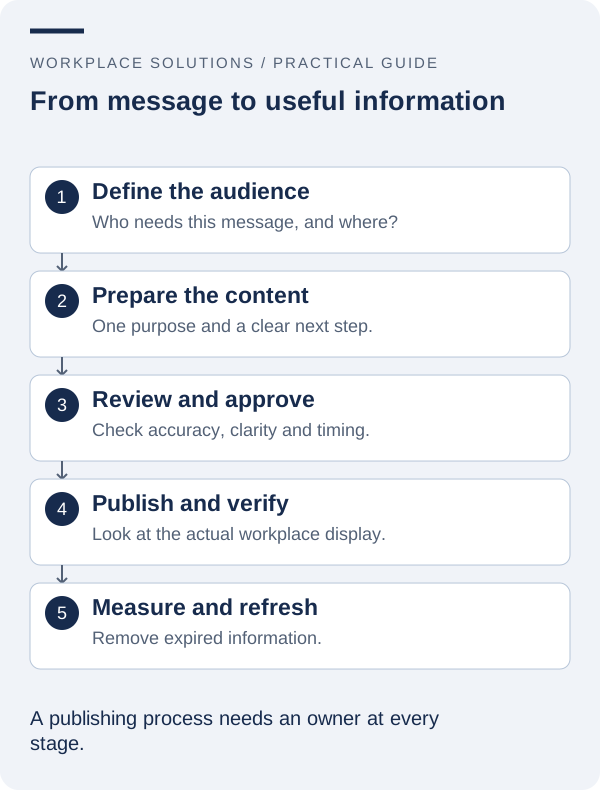
5. Establish ownership, expiry and review rules
Before launch, decide who can create content, who approves it and who removes it. A notice without an owner can remain on screen long after it is useful. Every time-sensitive item should have an end date or a scheduled review, and the responsible person should know what happens when that date arrives.
Create a small content register containing the message, intended audience, location, owner, publication period and next review. This can start as a simple shared document if a more specialised tool is not needed. The important point is that responsibility is visible and survives staff changes.
Prepare a set of dependable fallback content. A welcome message, general directions and a contact point can be more useful than a blank screen when a scheduled item expires. Keep fallback information accurate and avoid including material that will become misleading if it is not updated immediately.
Agree on the boundary between ordinary messaging and urgent operational information. Digital signage should not be assumed to replace a building’s approved emergency communication arrangements. Where screens form part of a wider process, the responsibilities and limitations need to be explicit.
6. Run a pilot that tests everyday work
A pilot should answer specific questions before more equipment is purchased. Select a representative location, rather than the easiest room in which to demonstrate a screen. Include the people who publish content, the team responsible for the network, and someone who uses the space without specialist knowledge of the project.
Test ordinary tasks first: switching on the equipment, updating a notice, changing a schedule and identifying the screen in the management system. Then try a controlled interruption, following the supplier’s guidance and the site’s change process. Record the displayed result, recovery steps and any information needed by support staff.
Keep acceptance criteria observable. “The reception notice can be updated by the nominated administrator and verified on the correct screen” is more useful than “the system is intuitive”. Include a content readability check at the intended viewing distance and a check that no private information appears in a public area.
Document what changed during the pilot. Small decisions about naming screens, organising content or positioning a mount can become expensive inconsistencies when copied across many sites. Resolve those details while the deployment is still manageable.
7. Budget for the whole service, not just the display
A practical budget separates equipment from installation, software, connectivity, content production and ongoing support. It also identifies who will spend time managing the service internally. A low hardware price does not reveal the full cost of keeping a screen useful for several years.
Ask for assumptions to be stated in the proposal. These may include the number of screens, site access, network readiness, the types of content to be shown and the level of training included. If an integration is needed, clarify its scope and the responsibility for maintaining it when another system changes.
Consider replacement and handover as well as launch. Record how devices are identified, how approved administrators receive access, and where configuration information is kept. Decide how the organisation will retrieve its content and records if it changes providers later.
A useful procurement comparison focuses on the same agreed brief. Comparing unlike proposals can conceal a missing installation task or an unsupported workflow. Treat unresolved assumptions as questions to settle, rather than automatically choosing the largest feature list or the lowest headline figure.
8. Review whether the screens are helping people
Start with a small number of measures related to the screen’s purpose. Reception staff might record common direction questions before and after a change. Content owners might track how often material expires on time. Support teams might track repeated interruptions and how long they take to resolve.
Use consistent observation periods and acknowledge other changes in the workplace. A quieter week or a new reception process can affect results. Feedback should help improve the service, not create a claim that the display alone caused every positive change.
Schedule a review after the initial operating period. Remove content that is not helping, simplify confusing templates and address repeated support tasks. A screen that remains accurate, readable and easy to manage is more valuable than one filled with constantly changing material without a clear purpose.
To move forward, gather your audience, location and publishing requirements in a short brief. Discuss that brief with Workplace Solutions and use it to guide the next conversation about digital signage, related wayfinding, and the support needed to keep the solution useful.