A workplace display needs support after installation, even when most days are uneventful. Content changes, devices age, network arrangements evolve and staff move into new roles. A practical maintenance plan helps the organisation recognise problems early and respond without relying on a single person who remembers how everything was originally configured.
The aim is not to create a complicated technical manual for every employee. It is to give each role the information needed to keep the service useful and obtain help when necessary. This guide explains how to organise routine checks, incident reporting, recovery and review for digital signage and related workplace displays.
1. Keep an equipment and service register
Record each display’s location, purpose and identifying details in an approved internal register. Include the associated player or other relevant component, the content owner and the support contact. If several screens look similar, a clear location-based identifier can prevent an incident from being investigated against the wrong device.
Distinguish physical equipment from the service it supports. A reception display may show a directory, general announcements and room information from different sources. Knowing those functions helps support staff understand which part of the service is affected when only one type of content appears incorrect.
Keep installation and configuration information available to authorised people. Record where credentials are managed, but do not place the credentials themselves in a public label or a generally shared asset spreadsheet. Review access when employees, contractors or suppliers change responsibilities.
Update the register when equipment moves, is replaced or is retired. An inventory that is accurate only on launch day becomes less useful with every change. Make record updates part of the work order or support process so they are not dependent on someone remembering later.
2. Check content as well as technical operation
A screen can be switched on and connected while still failing its purpose. The wrong input may be selected, a notice may have expired, or a directory entry may be out of date. Routine checks should therefore ask both whether the equipment is operating and whether the intended information is visible.
Agree on a realistic local check. A reception contact might confirm that the display is showing the expected layout and current information at the start of normal operations. The frequency should reflect the importance and rate of change of the content, rather than follow a universal schedule that nobody can maintain.
Review the viewing environment too. New furniture, temporary signs, glare or a changed queue position can reduce readability without producing any technical alert. Report those issues to the appropriate facilities or service owner rather than treating every problem as a software fault.
For cleaning, mounting and physical maintenance, follow manufacturer guidance and the organisation’s approved procedures. Work involving electrical equipment, access at height or building fixtures should be handled by appropriately authorised people. A support checklist should make the boundary between routine observation and specialist work clear.
3. Make incident reports useful from the beginning
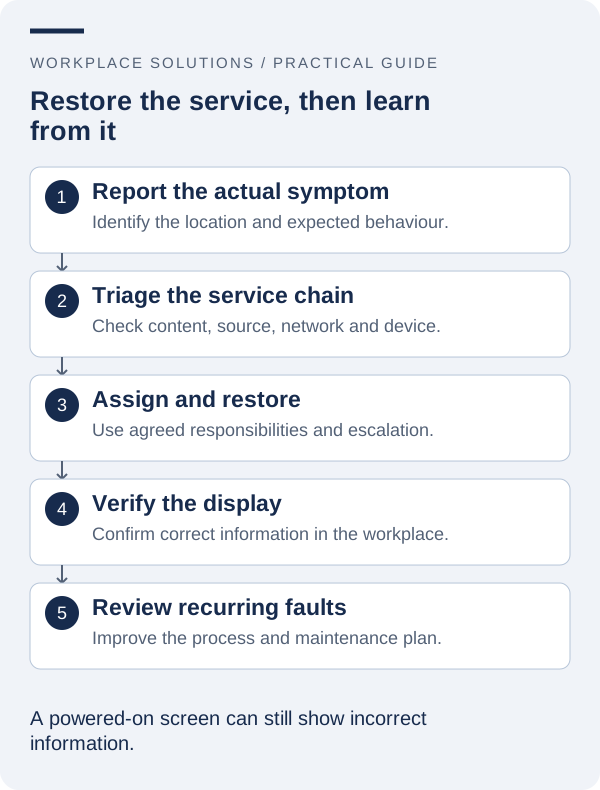
A helpful report identifies the screen, location, time observed and the effect on the service. Describe what is visible rather than only saying that the display is “not working”. A black screen, a frozen layout and an incorrect directory entry suggest different starting points for investigation.
Note whether the problem affects one display, a group or the entire service. If only one content type is wrong, include that detail. This helps distinguish a local equipment issue from a publishing, network or data-source problem.
Ask staff to record any approved actions already taken so the support team does not repeat them unnecessarily. Avoid encouraging untrained users to change configuration settings or repeatedly reset equipment. Unrecorded changes can remove useful evidence and introduce a second problem while the first is still being investigated.
Photographs may be helpful where workplace policy permits them, but check what the image would capture. Screens in healthcare or staff areas may contain information that should not be copied into an ordinary support email. Use the approved reporting channel and minimise unnecessary personal or sensitive information.
4. Triage incidents by their effect on the workplace
The same technical symptom can have different consequences in different locations. An unavailable promotional screen may be less disruptive than an event board relied on during a busy arrival period. Define priority in terms of the service impact and the available alternative, not only the number of affected devices.
Agree on the support route and escalation process before an incident occurs. Staff should know which team handles content, which team manages the equipment or network, and when the supplier needs to be involved. Avoid promising a response or restoration time that has not been agreed in the support arrangement.
| Observed issue | Useful first question | Likely owner to involve |
|---|---|---|
| Incorrect destination name | Is the approved location register also incorrect? | Directory or facilities owner |
| One screen is blank | Is the issue limited to this display location? | Local support and equipment owner |
| Several schedules are outdated | Is the source schedule current and available? | Source-system and integration owners |
| Expired announcement remains visible | Was an expiry or removal action assigned? | Content publisher or approver |
These examples are starting points for investigation, not diagnoses. Use the documented support process and supplier guidance to determine the appropriate action. Record the decision so that a handover between teams does not lose the original context.
5. Use an agreed recovery and fallback process
Document the recovery steps that authorised staff may perform and the conditions under which they should stop and request help. The procedure should be specific to the installed equipment and service. A generic instruction to restart everything can be disruptive and may not address the underlying cause.
Define what information people will use while a display is unavailable. Reception staff may provide directions, an approved notice may temporarily explain the change, or an alternative system may provide the current schedule. Keep these arrangements consistent with the workplace’s normal operating requirements.
After recovery, verify the result that matters to viewers. Confirm the correct content is shown at the intended location, not merely that a device reports an online status. If the incident affected a data feed, check a representative entry against the approved source.
Record the restoration time and any temporary workaround left in place. A service can appear restored while still depending on an arrangement that needs follow-up. Give that follow-up an owner and a due date so a temporary solution does not become an undocumented permanent condition.
6. Plan updates, replacements and supplier involvement
Identify which maintenance activities are handled by the supplier and which remain with the organisation. Software updates, account administration, replacement equipment and content changes may follow different processes. Put those boundaries in the operating documentation so that responsibility is clear.
Discuss how significant updates will be tested and introduced. Where practical, use a representative device or a limited group before a wider change. Confirm what recovery options exist and how the organisation will recognise an unexpected effect on content or an integration.
Review replacement arrangements according to the service’s importance. A spare device may be useful in some environments, while another arrangement may be more appropriate elsewhere. Consider configuration, licensing, delivery and site access as well as the availability of physical hardware.
Keep supplier and support contacts current. A record that points to a departed employee or an obsolete address can extend an interruption. Include contract or service-reference information in the approved internal record where it helps authorised staff obtain support efficiently.
7. Use recurring incidents to improve the service
A repeated fault deserves more than a repeated workaround. Review incident records for patterns: the same location, the same content type, a particular time of day or a change in another system. Those patterns can help the relevant teams choose a focused investigation.
Separate technical reliability from information quality. Repeated expired notices may require better ownership and scheduling, while recurring connectivity problems need technical review. Treating both as a general support burden can conceal the process change that would prevent the problem.
Use measures that inform action, such as repeated incidents by category, unresolved workarounds and the effort required to maintain content. Interpret them in context. A newly installed site may report more questions because staff are learning, rather than because the equipment is less reliable.
Feed improvements into documentation and training. If a better reporting question or a clearer local instruction helped resolve an issue, update the shared process. The value of incident review is the change it produces, not simply the size of the report collected at the end of the month.
8. Build a maintenance plan people can actually use
Keep the first version concise. It should identify the service, responsible people, routine checks, reporting route, approved recovery actions and review process. Link to detailed supplier instructions where necessary rather than reproducing technical material that may become outdated.
Walk through the plan with the people expected to use it. Ask a local contact to report a sample issue and a content owner to explain how an incorrect notice is corrected. These exercises can reveal missing information before a real interruption puts the process under pressure.
Review the plan when equipment, content sources or staff responsibilities change. A support document is part of the operating service and needs an owner of its own. Keep its version and location easy for authorised users to recognise.
For help defining the support arrangements around a workplace display solution, explore Workplace Solutions’ services and contact the team. Bring the current equipment list, common issues and operating requirements so the conversation can focus on a practical and maintainable support approach.