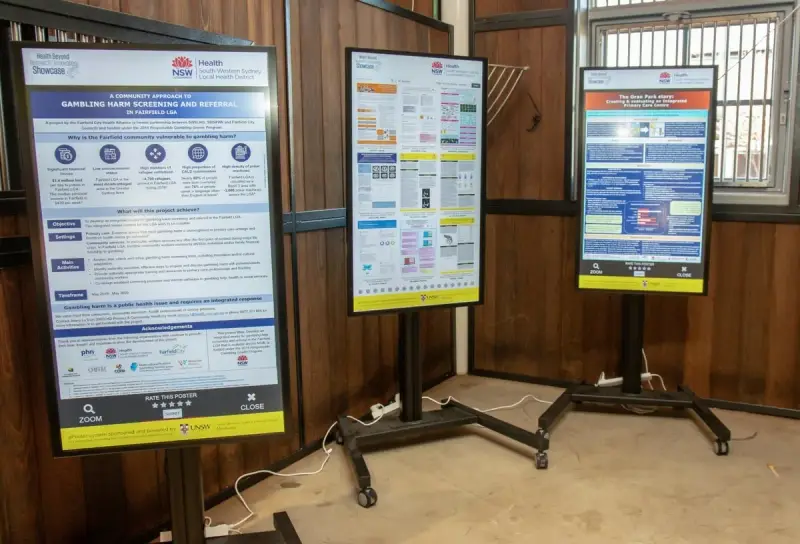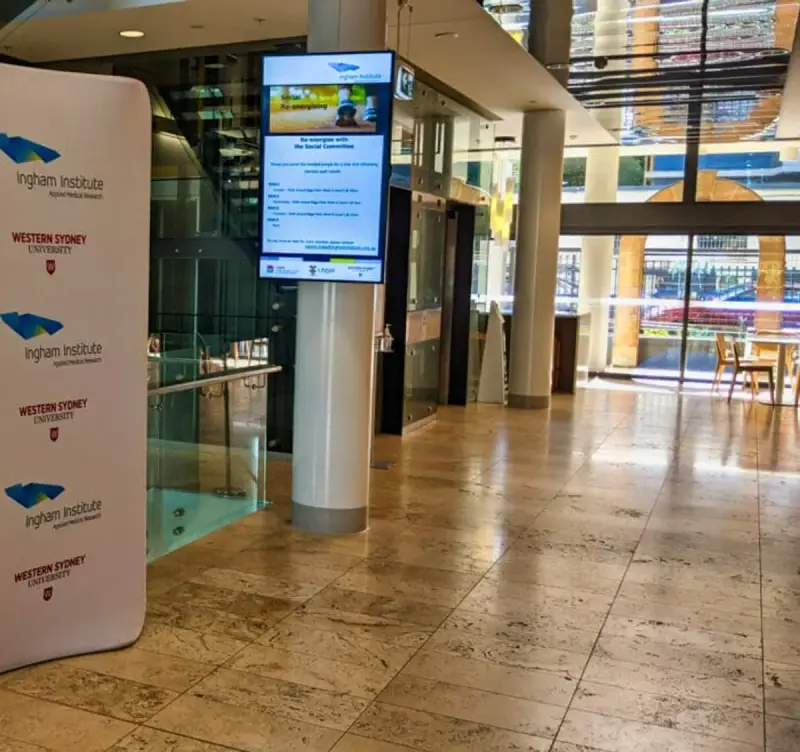
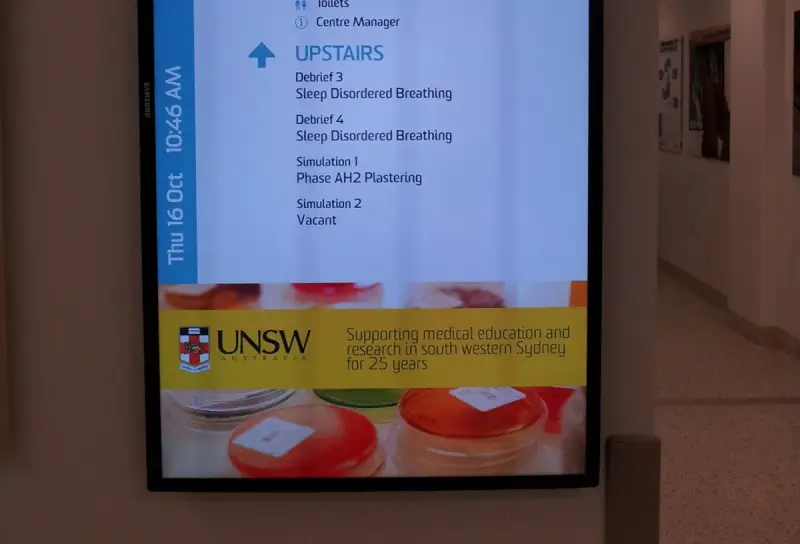
A room display can look correct while the information behind it is wrong. A booking may use an old room name, a private meeting title may be visible outside the room, or a calendar change may not yet have reached the screen. Reliable room and event boards depend on the relationship between the booking process, the source data and the information shown to people on site.
This guide explains how to plan that relationship. It is intended for workplaces and venues considering room or event displays, whether the first project covers a small meeting area or several shared spaces. The emphasis is on clear responsibilities, realistic testing and a schedule people can understand.
1. Define the role of each room and event display
A display outside a meeting room and a central event board serve different purposes. The first may help someone confirm that they have reached the right room. The second may help a visitor choose among several events and find the next location. Describe each use separately before trying to fit both into one template.
Identify which details a viewer needs at that point. A room name, event time and approved event title may be useful, while internal booking notes are unlikely to be appropriate. A central board may need a destination or level so that the schedule also supports navigation.
Decide whether the display is informational or whether a booking interaction is required. The ability to show calendar information does not automatically include the ability to reserve a room from the screen. Any interactive booking workflow needs to be confirmed as part of the product scope and tested with the organisation’s booking rules.
Document what the display should show when the room has no scheduled event. An empty-looking screen can be ambiguous. Agree on wording that accurately reflects the source information without claiming the room is available when another operating rule may apply.
2. Establish calendar and room-data ownership
Name the source that will provide the schedule. It may be a room calendar, an event-management system or another approved application. Identify the team that owns that source, the team that operates the display and the person who can approve changes to the connection between them.
Build a room register with stable identifiers, public names, locations and the relevant source record. Public names should match physical signs and visitor instructions. If a room is renamed, the mapping needs to remain reliable rather than creating an accidental second destination.
Review booking practices before connecting a display. If staff use inconsistent titles or book the wrong resource, the screen can faithfully reproduce confusing information. A display project is a useful opportunity to establish clear rules for event names, location fields and the use of private booking details.
The Advertise Me Smart Room and Event Boards information describes integrations with event-management systems, Microsoft calendars and third-party APIs. That provides a starting point for discussion; the particular source, permissions and configuration for your environment still need to be agreed.
3. Decide which booking details may be visible
A calendar entry can contain information that was never intended for people walking past a room. Review the proposed field mapping before launch. Event titles, organisers, attendees and notes should not be treated as equally suitable for public display.
Establish an approved rule for private or restricted events. Depending on the system and configuration, a neutral label may be preferable to a descriptive title. Test the required behaviour rather than assuming that a calendar’s private flag will be interpreted by every connected display in the same way.
For public events, use a title that helps attendees identify the session and its location. Avoid internal codes unless they are meaningful to visitors. If a speaker name or additional detail is included, confirm that its publication is appropriate and that the event owner maintains it.
Use demonstration bookings during development and training. Include a public event, a restricted event and an entry with incomplete fields. Reviewing these examples makes the intended information boundary visible before real schedules are shown in reception areas, corridors or shared meeting spaces.
4. Test time zones, recurring events and changes
Australian organisations may operate across locations with different time zones and daylight-saving arrangements. Decide which time zone each display should present and how that relates to its source calendar. Do not assume that the server, booking application and physical room all use the same setting.
Include realistic time-related cases in testing: an event spanning a date boundary, a recurring booking, a changed occurrence, a cancellation and an event moved to another room. Verify the result on the screen itself. A correct entry in the source application does not prove that every downstream presentation is correct.
Check how the display distinguishes a current event from the next scheduled item. The visual treatment should make the sequence easy to understand without relying on colour alone. Use clear time labels and avoid layouts that require viewers to infer whether a time is a start, finish or duration.
Agree on the process for correcting a scheduling problem during normal operations. Staff should know whether to amend the source record, report a display mapping issue or request technical support. Clear ownership prevents the same incorrect event from being edited independently in several places.
5. Design the information around arrival and movement
A useful room board answers “Am I in the right place?” quickly. Give the room name and relevant event information a clear hierarchy. Avoid filling the screen with details that are not useful to someone approaching the door or deciding where to go next.
A central event display has a different scanning task. Group or order entries in a way that helps people compare times and destinations. Test the layout with a full day’s realistic schedule, including long titles and overlapping sessions. A design that works with three short examples may fail when the actual programme is added.
Check text contrast, viewing distance and the impact of lobby lighting. Keep the presentation consistent with the building’s naming and wayfinding conventions. If an event board gives a destination label that differs from the room sign, the visitor still has a navigation problem even when the schedule is accurate.
Provide an assistance route for schedule questions or changes. A display should support the front-of-house team, not make visitors feel that an unexplained screen status is the final answer. Keep relevant staff informed about how the displayed information is produced.
6. Define behaviour when a source or connection is unavailable
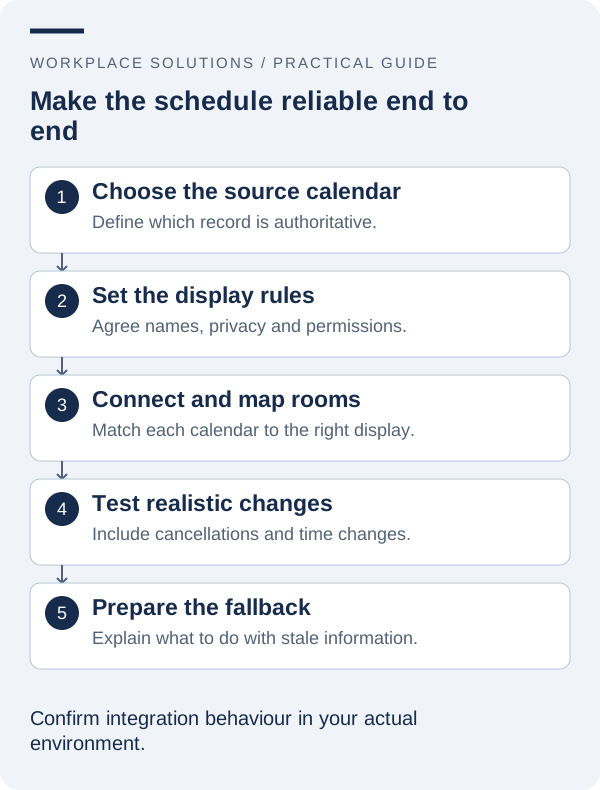
Ask what happens when the display cannot obtain a fresh schedule. It may show older information, a general message or an error state, depending on the solution. Understand the behaviour and decide whether it is acceptable for each location.
If older information can remain visible, consider how staff will recognise that condition. An apparently current schedule can be misleading if a cancellation has not reached the screen. Any freshness indicator or fallback behaviour should be confirmed with the supplier and included in acceptance testing.
Plan a practical manual alternative. Reception may need access to the current schedule through another approved channel, and staff may need a way to direct attendees during an interruption. The fallback should be simple enough to use while an event is starting, not a document that requires extensive technical interpretation.
Keep an incident record that distinguishes source-data problems from display faults. A cancelled event still present in the source is different from a correct source entry that has not reached the screen. That distinction helps support teams investigate the right part of the information flow.
7. Pilot the complete booking-to-display workflow
Choose a representative set of rooms or events for the pilot. Include the booking administrator, the people responsible for the calendar or event system, front-of-house staff and the display support contact. Each sees a different part of the workflow.
Walk through creating a booking, approving its public wording, changing its time, moving its location and cancelling it. Check how quickly the expected result becomes visible under the agreed operating conditions. Avoid advertising a universal update speed unless it has been established for the proposed setup.
Test the tasks that an administrator will perform after handover. These may include identifying a display, reporting incorrect information and adding or renaming a room through the agreed process. Record any task that still depends on an undocumented supplier intervention.
Use clear acceptance statements, such as “a restricted event displays the approved neutral wording” or “the room name matches the physical sign”. These checks provide stronger evidence than simply confirming that a screen can show a sample calendar.
8. Maintain the schedule service after installation
Room and event information changes with the workplace. Refurbishments, new booking practices, software changes and staff turnover can all affect the service. Assign responsibility for reviewing the room register, access permissions and support information as those changes occur.
Keep training focused on the source of truth. Staff should understand where to make a booking correction and which details are intended for display. This reduces the temptation to create local workarounds that look helpful in the short term but leave several inconsistent versions of a schedule.
Review recurring questions from visitors and front-of-house teams. If people repeatedly ask about the same label or cannot distinguish current and upcoming events, improve the presentation. If information is repeatedly late or missing, investigate the workflow or integration rather than changing the visual design alone.
Start a project conversation with your room list, source system and examples of the information you want to show. Explore smart room and event boards and contact Workplace Solutions to discuss the configuration, responsibilities and support needed for your spaces.